![cohera-tech-logo-tagline-full-colour-rgb-1.svg]](https://support.cohera-tech.com.au/hubfs/cohera-tech-logo-tagline-full-colour-rgb-1.svg)
A Microsoft Azure account must be set up for each user that requires SSO. The Vemcount Username must be identical to the Unique User Identifier (UUI) associated with the Microsoft Azure account. The UUI is usually the Microsoft Azure email address. The Microsoft Azure account must be logged in on the corporate device being used to access Vemcount.
Vemcount allows SSO at a very basic level. Vemcount does not support 'auto sync' with Azure Active Directory/Entra ID. User accounts must be managed individually within Vemcount. When setup correctly, users have the ability to login into Vemcount without a password by clicking on the 'sign in with Microsoft account' button on the Vemcount login screen.
Vemcount Setup
Set-up SSO for a user by following the steps below:
- Admin user check/arrange with IT Support/Administrator that a Microsoft Azure account is enabled for the user. Record the UUI associated with the Microsoft Azure account.
- Login to Vemcount using Admin credentials.
- Select Setup | Users in the top menu.
- Select the Username of the user to edit the account.
- Check that the 'Username' is identical to the UUI associated with the Microsoft Azure account. If not, then overwrite the 'Username' and enter in the appropriate Microsoft Azure UUI.
- Select 'Save & return'.
Azure SAML2 Setup
Note the below steps are for IT Departments
- First step is to create a web application on the Azure portal by registering a new app. Registering an app will generate a Directory (tenant) ID and other resources (see image below) which will be used to further configure the web application. Use the link below to create the application:
https://portal.azure.com/#view/Microsoft_AAD_RegisteredApps/ApplicationsListBlade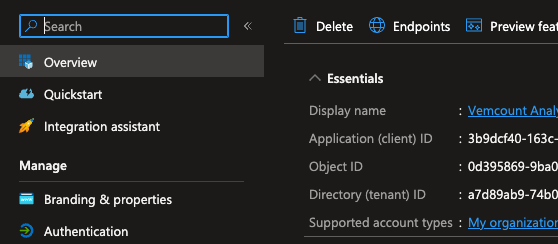
- Configure the web application
When configuring the application, please use the following URLs, but replace the black masked bar with your own Directory (tenant) ID created in Step 1.
For example, the first URL in the screenshot below should be https://vemcount.app/saml/v2/DIRECTORY_TENANT_ID/acs
Links to use (copy and paste these):
https://vemcount.app/saml/v2/DIRECTORY_TENANT_ID/acs
https://vemcount.app/saml/v2/DIRECTORY_TENANT_ID/login
https://vemcount.app/saml/v2/DIRECTORY_TENANT_ID/logout
https://vemcount.app/saml/v2/DIRECTORY_TENANT_ID/metadata
In the menu, select 'Manage' then 'Authentication'. Select 'Add a platform' and select 'Web'.
Authentication: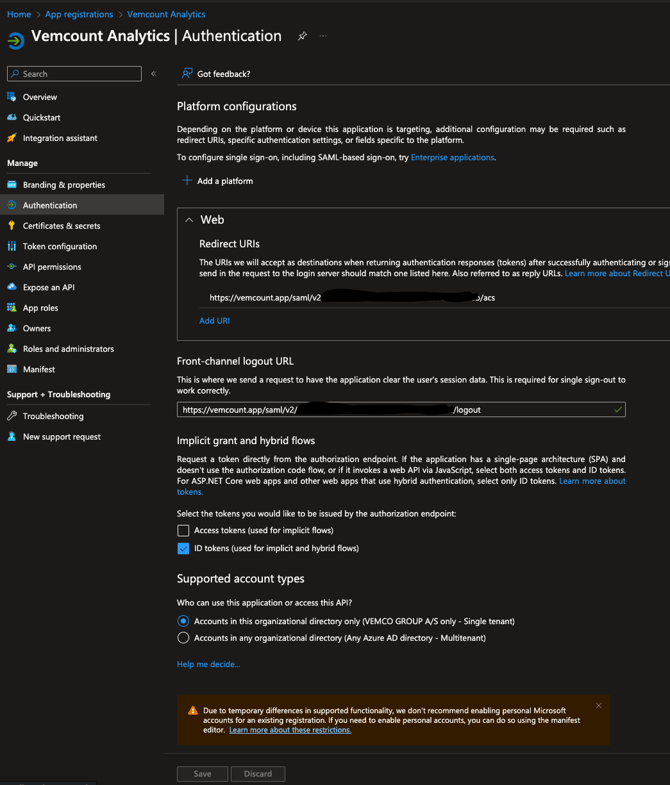
Single sign-on setup (can be found under Overview page, click right next to Managed application in ..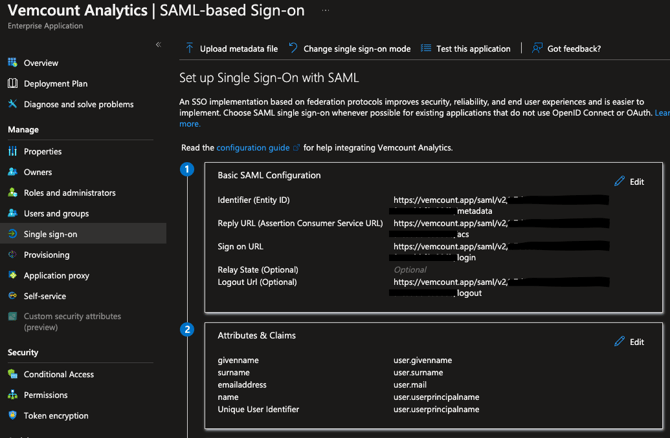
Please supply your base64 encoded key to support@cohera-tech.com.au (see image below).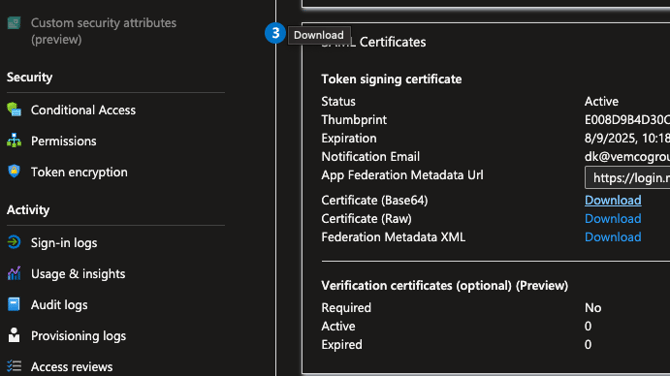
- Once this is done, send the newly created Directory (tenant) ID to
support@cohera-tech.com.au , as well as your Vemcount company ID.
Cohera-Tech will work with Vemco Group and use the key to complete the setup. When SSO is ready, you can add your user/groups to the app, and test with either a browser extension, or add the app your your users portfolio in Office 365.
if you are experiencing difficulty with SSO, please contact Cohera-Tech here.