![cohera-tech-logo-tagline-full-colour-rgb-1.svg]](https://support.cohera-tech.com.au/hubfs/cohera-tech-logo-tagline-full-colour-rgb-1.svg)
A live inside widget uses real-time data stream from sensors to calculate building/zone occupancy.
Live inside is a running total of IN less OUT counts.
Create a live inside widget by following the steps below:
- Login to Vemcount.
- Select the dashboard to edit in the Dashboard drop down list or create a new dashboard.
- Select '+' icon in the right side menu then select 'Widget' in the drop down list.
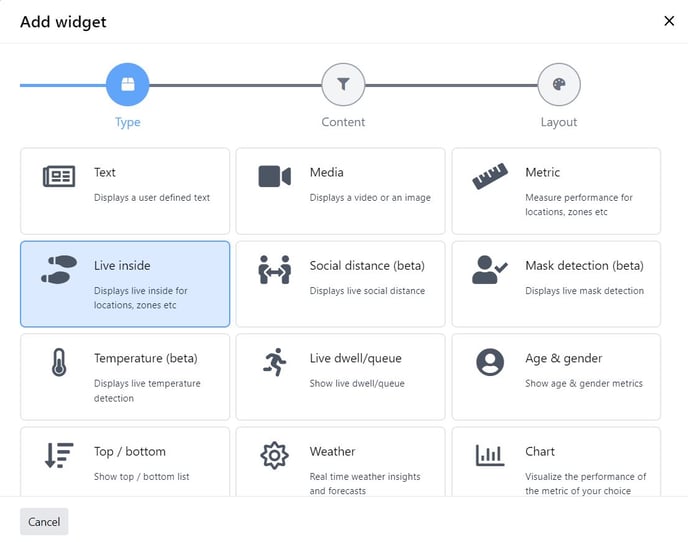
- Select the 'Live inside' widget in the 'Add widget' window.
- Complete the source details and ensure 'Bidirectional' data is ticked.
- Select 'Next' button.
- Complete the layout details and select 'Save'.
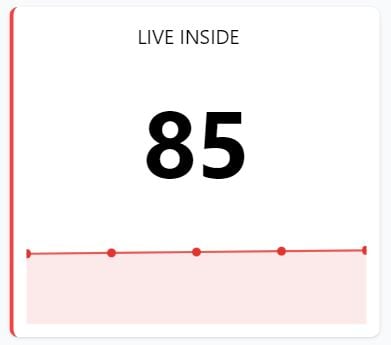
Live Inside Widget Display Types
There are optional display types for live inside widgets. Before enabling these, the widget layout size must be at least 2 wide. The widget size can be changed by selecting the widget and clicking the 3 dot menu then selecting 'Change Layout'.
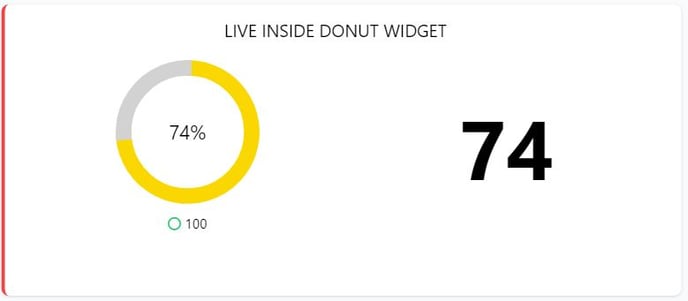
| Donut | Displays a donut chart with percentage. |
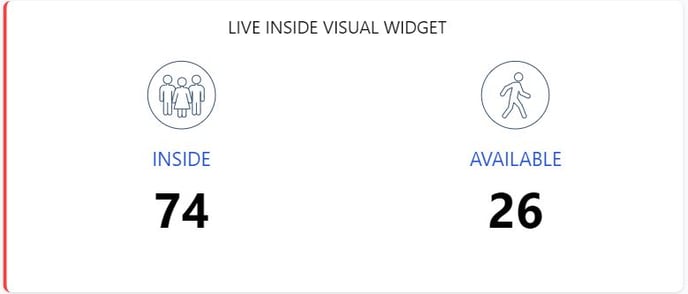
| Visual | Displays Inside and Available with icons. |
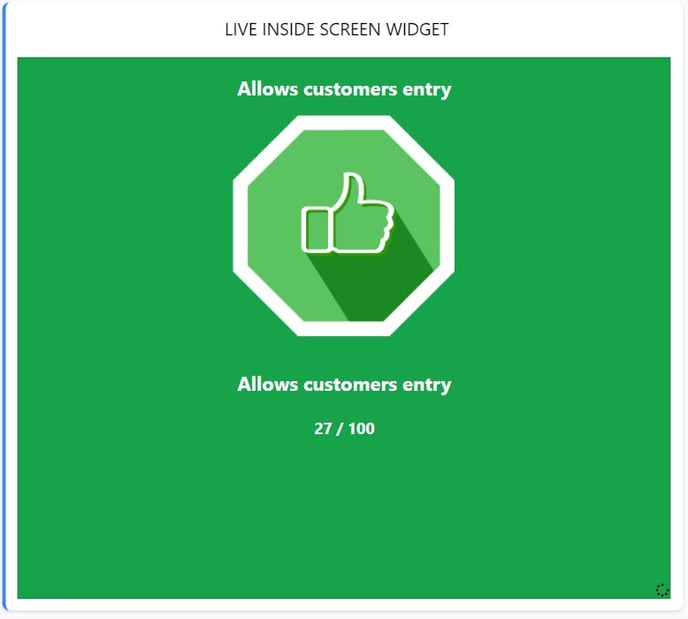
| Screen | Suitable for displaying on a screen display. |
Change the live inside widget display type by following the steps below:
- Select the live inside widget.
- Select the 3 dot menu and select 'Change Layout' from the drop down list.
- Change the width and height to a minimum of 2 and 'Save'
- Select the live inside widget.
- Select the 3 dot menu and select 'Manage Content' from the drop down list.
- Tick the 'Enable Target' option.
- Select the display type, a target value and other options if desired.
- Select 'Save' button.