![cohera-tech-logo-tagline-full-colour-rgb-1.svg]](https://support.cohera-tech.com.au/hubfs/cohera-tech-logo-tagline-full-colour-rgb-1.svg)
To be able to create a dashboard, the user permission must be activated. Creating dashboards permission is normally activated by the Administrator account. If you do not have the ability to create a dashboard please contact your Administrator to enable this feature.
A Dashboard is a collection of Dashboard Widgets to visually represent an at-a-glance vision of an organisation's performance.
A Dashboard Widget is a 'container' that is used to hold and display reporting metric information within a dashboard. This information could be a metric value, chart or table.
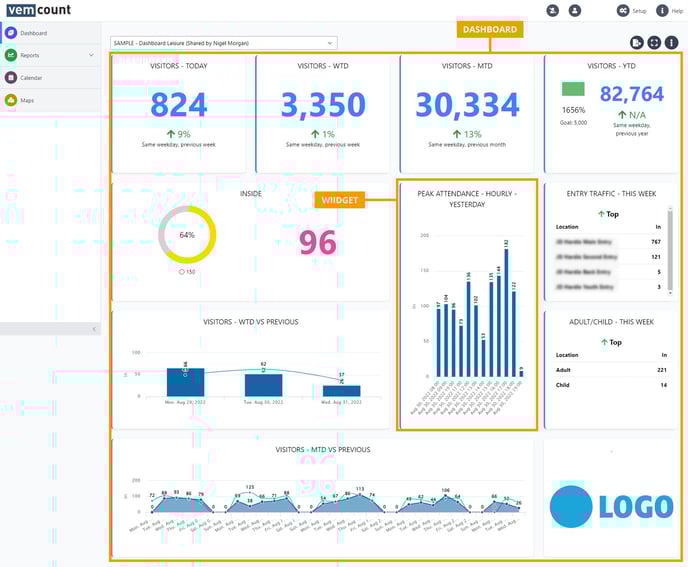
Create a dashboard by following the steps below:
- Login to Vemcount.
- Select the default dashboard in the Dashboard drop down list.
- Select '+' icon in the right side menu then select 'Dashboard' in the drop down list.
- Name the dashboard you are creating then select 'Save' button.
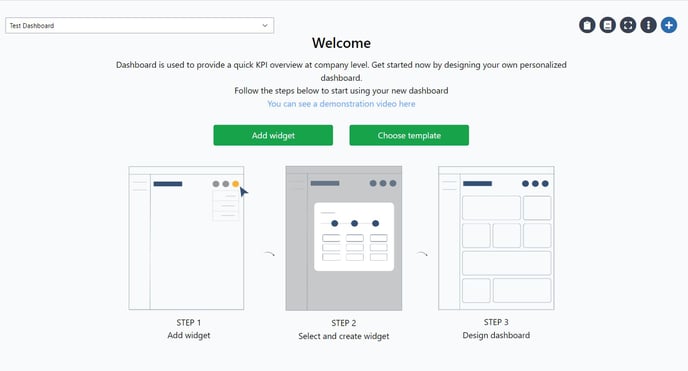
- The dashboard name will appear in the Dashboard menu (see image below). You can now add widgets using the 'Add widget' button or selecting the '+' icon right side menu then choose 'Widget' in the dropdown list to further create the dashboard.
Widgets
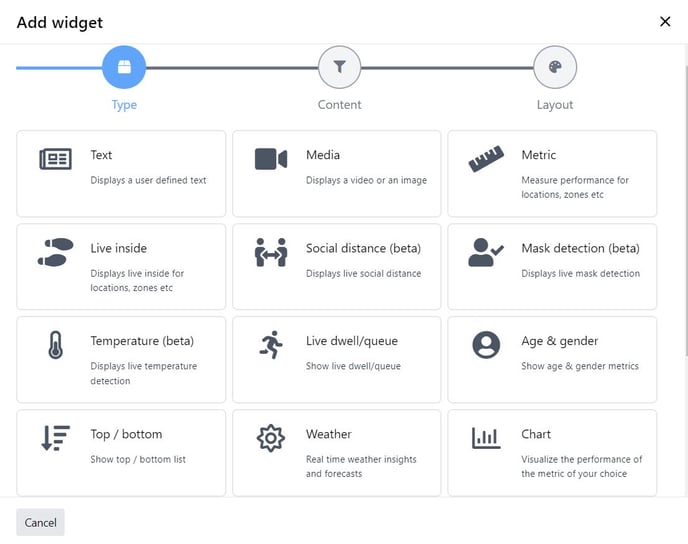
A range of widgets are available to be added to dashboards. The widgets displayed for use are determined by the service agreement and modules purchased . Each widget can be customised, moved and resized in the dashboard by selecting the widget and clicking the 3 dot menu or the 4 arrow move directional icon. The most common widgets to use are listed below.
Text:
| Text | Displays user defined text such as a title or notes. |
| Metric | Display key performance metrics such as footfall in, inside and dwell time. |
| Live Inside | Displays real-time live inside data for a location or zone. |
| Age & Gender | Show age and gender metrics (if available). |
| Top/bottom | Displays a ranking table for metrics. |
| Weather | Displays weather insights and forecasts. |
| Chart | Displays a chart to visualise performance of metrics. |
Please view the videos below to find out more.
f